
RabbitSubtitle field guide
Batch subtitle processing for creator teams
Before you begin
- Creator, Studio, and Creator Lifetime accept 20 locked videos per batch; Enterprise Lifetime accepts 500 in one resumable queue.
Click-by-click
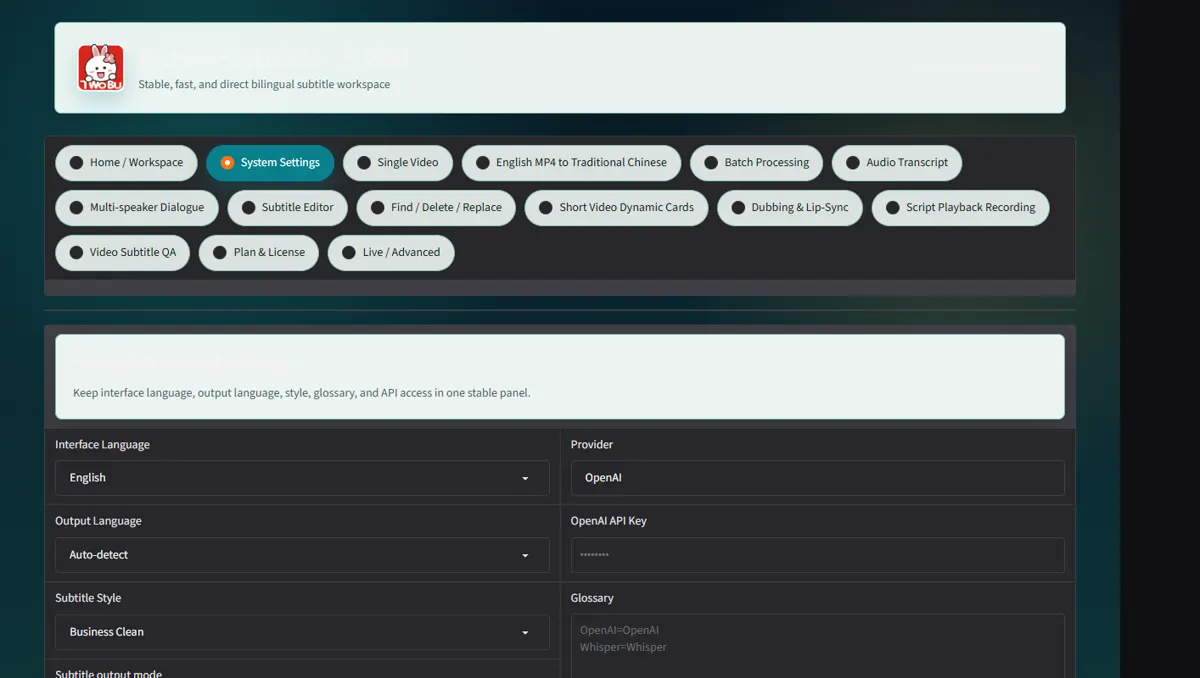
In Settings, choose interface and target languages, Bilingual output, pacing, style, domain, glossary, smart naming, and Burn into video
In Settings, choose interface and target languages, Bilingual output, pacing, style, domain, glossary, smart naming, and Burn into video; click Save settings.
 Open full-size screenshot ↗
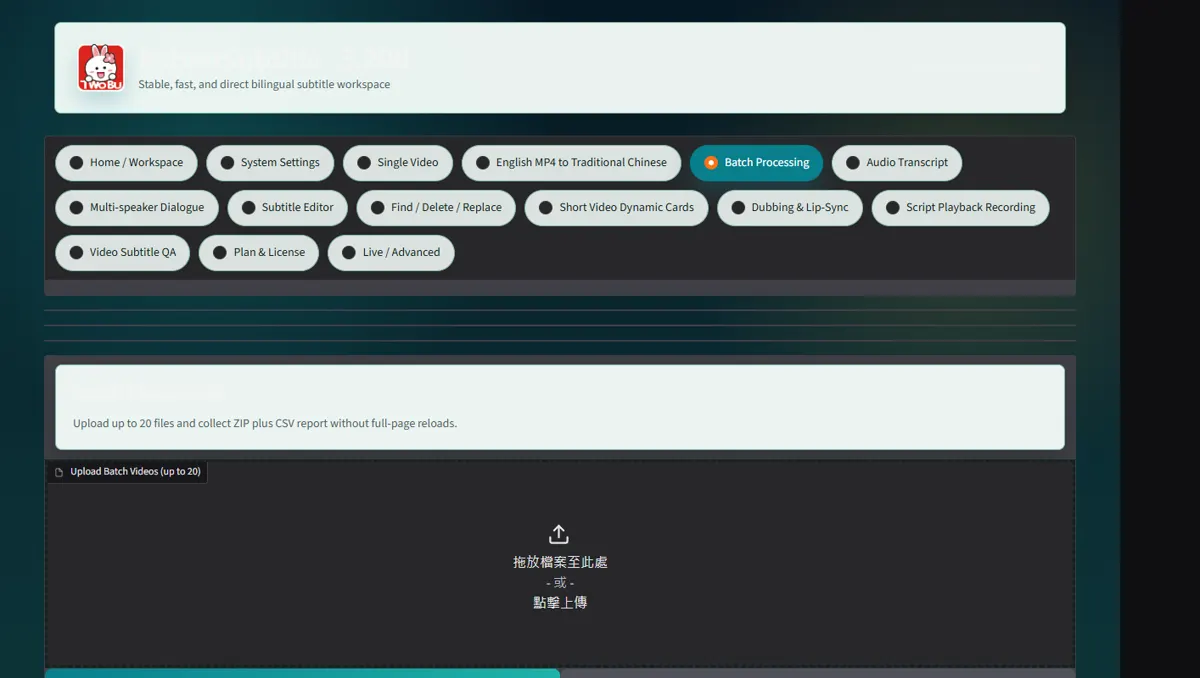
Rename locked sources consistently, open Batch Processing, and select Upload Batch Videos
Rename locked sources consistently, open Batch Processing, and select Upload Batch Videos. The signed licence sets the 20- or 500-file limit.
 Open full-size screenshot ↗
Confirm file count, disk estimate and shared settings, then click Start batch processing once
Confirm file count, disk estimate and shared settings, then click Start batch processing once. Enterprise internally checkpoints groups of 20, so watch Batch Status instead of resubmitting.
Open full-size screenshot ↗Download the ZIP64 volumes and Batch Report CSV/JSON
Download the ZIP64 volumes and Batch Report CSV/JSON. Use input_file, status, output_mp4, output_srt, retry_count and error_message to isolate failures.
Open full-size screenshot ↗Spot-check the beginning, middle and end of every success
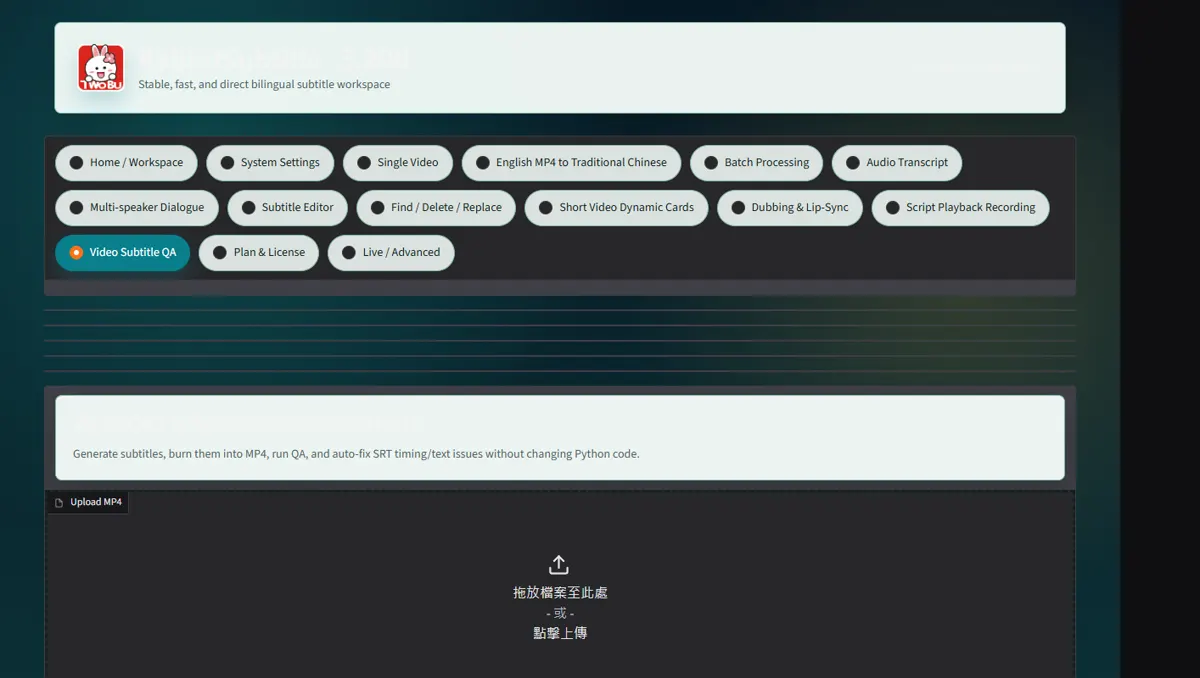
Spot-check the beginning, middle and end of every success; choose retry failed items so completed files are not processed again, then open the delivery on another device.
 Open full-size screenshot ↗
What you receive
- ZIP64 volumes, split every 20 files or near 4 GB
- CSV/JSON audit manifests plus MP4, SRT and VTT outputs
Troubleshooting
- No ZIP: read Batch Status and CSV error_message before retrying.
- One corrupt source: retry it alone; do not rerun successful files.
Final verification
- Success, failure, queued and cancelled totals equal the upload count.
- Names, terms, timing and visual safe area pass human review.